Create a folder or subfolder in Outlook
Folders provide a way to organize email messages, calendars, contacts, and tasks in Outlook.
Select a tab option below for the version of Outlook you're using.
New Outlook
Create a top-level folder in new Outlook
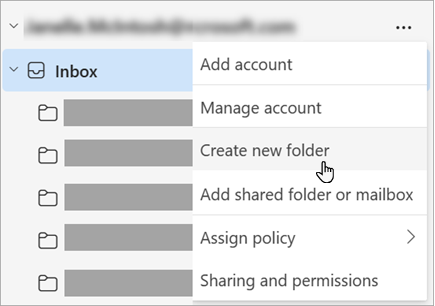
In the folder pane on the left, right-click your email address, or hover over it and select More options > Create new folder.
Enter a name for the new folder, then press Enter.
Create a subfolder in new Outlook
Select the folder where you want to create a subfolder.
Right-click the folder, or hover over it and select More options > Create new subfolder.
Enter a name for the new folder, then press Enter.
Classic Outlook
To add a folder to the folder pane in classic Outlook, do the following:
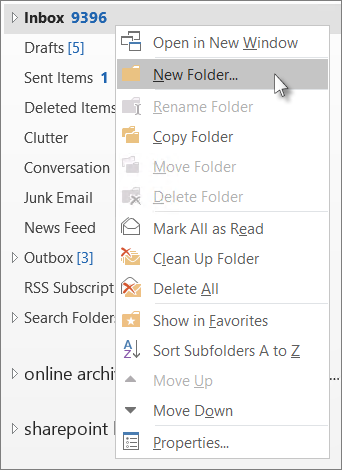
In the left pane of Mail, Contacts, Tasks, or Calendar, right-click where you want to add the folder, and then click New Folder.
Note: When in Calendar, the New Folder command is replaced with New Calendar.
In the Name box, enter a name for the folder, and press Enter.