Create and Add an Email Signature in Outlook
New Outlook
Create and add an email signature in new Outlook
- Select Settings
.
- Select Accounts > Signatures.
- If you have more than one account added to new Outlook, select the account you want to apply your email signature to.
- Select
New signature, then give it a distinct name.
- In the editing box below the new name, type your signature, then format it with the font, color, and styles to get the appearance you want.
- Select Save when you're done.
- With your new signature selected from the list above the editing box, go to Select default signatures and choose whether to apply the signature to new messages and to replies and forwards. Or leave it blank and add the signature you want when composing a message.
- Select Save again.
Add a signature when composing a message in new Outlook
- From Mail, select New mail.
- In the Insert group on the Message tab, select Signature.
- Choose one of your saved signatures to add to your message.
Classic Outlook
Depending on the size of your classic Outlook window and whether you're composing a new email message or a reply or forward, the Message menu and the Signature button might be in two different locations.


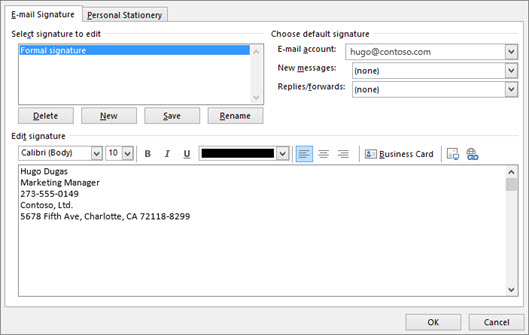
- You can add links and images to your email signature, change fonts and colors, and justify the text using the mini formatting bar under Edit signature.
- You can also add social media icons and links in your signature or customize one of our pre-designed temlates. For more information, see Create a signature from a template.
- To add images to your signature, see Add a logo or image to your signature.
In the E-mail account drop-down box, choose an email account to associate with the signature. You can have different signatures for each email account.You can have a signature automatically added to all new messages. Go to in the New messages drop-down box and select one of your signatures. If you don't want to automatically add a signature to new messages, choose (none). This option does not add a signature to any messages you reply to or forward.
Type a new signature to use in your email
Add a logo or image to your signature in classic Outlook for Windows
- Open a new message and then select Signature > Signatures.
- In the Select signature to edit box, choose the signature you want to add a logo or image to.
- Select the Image button
, locate your image file, and select Insert.
- To resize your image, right-click the image, then choose Picture. Select the Size tab and use the options to resize your image. To keep the image proportions, make sure to keep the Lock aspect ratio checkbox checked.
- When you're done, select OK, then select OK again to save the changes to your signature.
Insert a signature manually in classic Outlook
- In your email message, on the Message tab, select Signature.
- Choose your signature from the fly-out menu that appears. If you have more than one signature, you can select any of the signatures you've created.
Outlook for Web
Create and add a signature to a message in Outlook on the web or Outlook.com
You can create an email signature in Outlook on the web or Outlook.com that you can then add to all outgoing messages or add manually to specific ones.
Select Settings
at the top of the page.
Select Account > Signatures.
Under Email signature, type your signature and use the available formatting options to change its appearance.
Select the default signature for new messages and replies.
Select Save when you're done.
Manually add your signature to a new message in Outlook on the web or Outlook.com
If you've created a signature in Outlook on the web but didn't choose to automatically add it to all outgoing messages, you can add it later when you write an email message.
In a new message or reply, type your message.
- On the Message tab, selectSignature.
If you created multiple signatures, choose the signature you want to use for your new message or reply.
When your email message is ready, choose Send.
